The time and date is incorrect in the Windows 7
The computer uses the date and time to identify when files are created, modified, or deleted, manage email messages, catalog system restoration points and many other important system related activities. This document provides instructions on how to change the date and time settings on the computer and how to enable Internet Time.
Note : Date and Time is wrong you may not be able to visit secured sites like: Banking Website, Educational Websites etc.
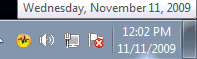
Changing the date and time
Follow these steps to change the date and time settings.
1. Click the displayed time in the taskbar and then click Change date and time settings
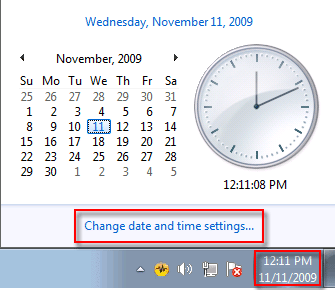
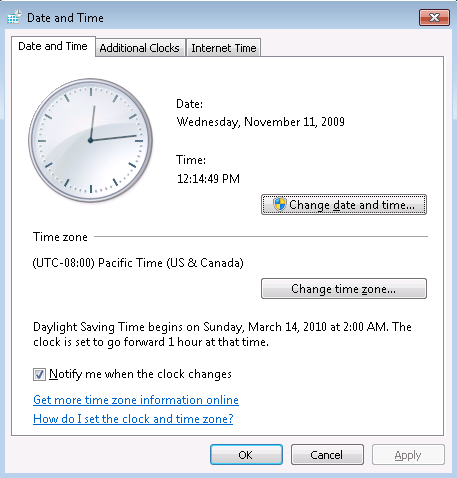
A Date and Time window opens.
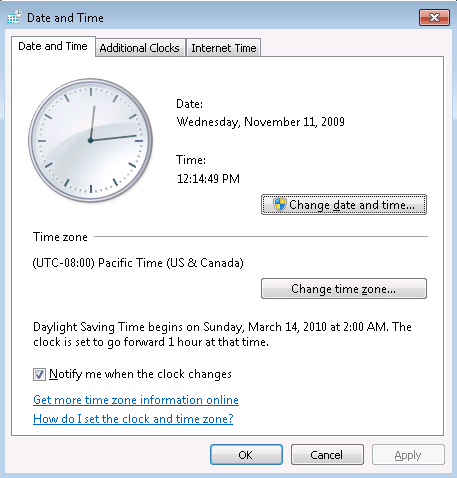
- Click the Date and Time tab.
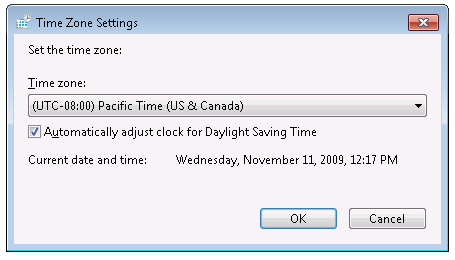
- Click Change time zone. Make sure the correct time zone is selected. Place a checkmark next to Automatically adjust clock for Daylight Saving Time if it is not already selected, and then click OK .
- Click the Change date and time.
- Click the small left and right arrows in the calendar to select a month and year, and then click a day within the month.
A Date and Time Settings window opens.
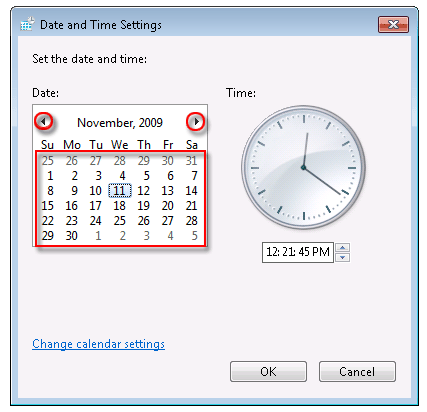
- Change the time by entering the hour, minute, AM or PM, or by clicking the up down arrow buttons. Click OK when the time matches the current time.

The time zone, date, and time have been set.
Using Internet Time
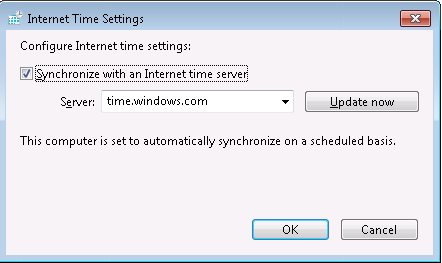
Windows can automatically synchronize the date and time with a time server to make sure the accurate time is displayed. Follow these steps to enable Internet Time:
- Click the displayed time in the taskbar and then click Change date and time settings.
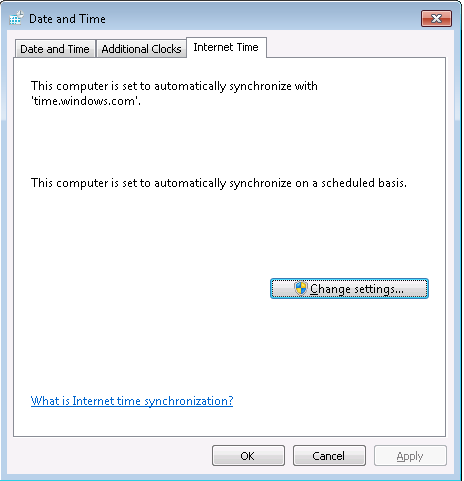
- Click the Internet Time tab, and then click Change settings.
- Make sure that Synchronize with an Internet time server is checked.
- Make sure the computer is connected to the Internet and click the Update Now button. NOTE: If the computer fails to receive an update from the selected Internet time server, a message opens stating that an error has occurred. Select a different server and try again.
- Click OK.
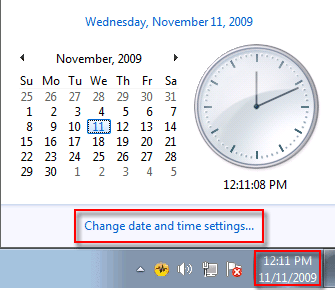
A Date and Time window opens.
If you are prompted for an Administrator password or confirmation, type the password or provide confirmation.
TKB:1115